
Creating and managing boards
Create and organize boards, describe their purpose, and control who can submit feedback.
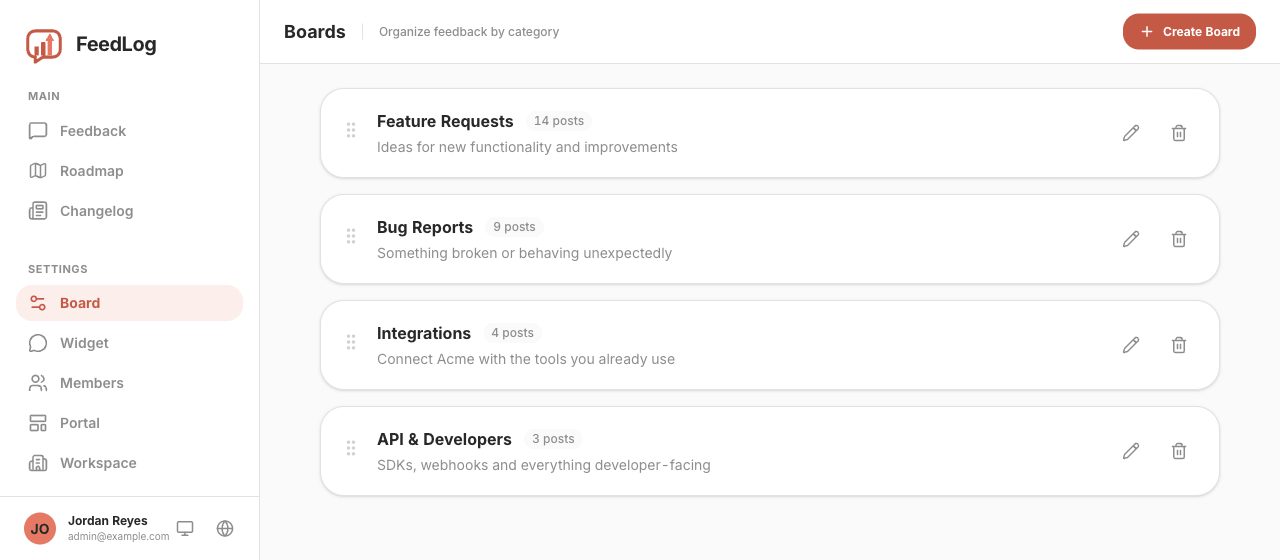
A board is a container for feedback. Every post belongs to one board or remains
uncategorized. Board names and descriptions help users decide where to submit
their feedback.
You manage them under Settings → Board in the dashboard.
Default boards
A new workspace includes four boards on both Cloud and self-hosted installations.
You can start collecting feedback without creating or renaming any boards.
| Board | What goes in it |
|---|---|
| Feature Requests | Something the product doesn't do yet |
| Bug Report | Something that's broken |
| Improvements | A small change to something that already works |
| Other | Anything that fits none of the above |
We recommend keeping Feature Requests separate from Improvements. Use Feature
Requests for capabilities the product does not yet provide, and Improvements
for changes to existing capabilities. This distinction can make planning and
prioritization easier.
Before adding more boards, check whether the four broad defaults are sufficient.
Consider adding a board when a recurring category has enough feedback to benefit
from its own view, and base the category on feedback you have actually received.
Deleting a board later leaves its posts uncategorized, and FeedLog does not offer
bulk reassignment. You must assign those posts to another board one at a time.
Creating a board
Click Create Board and give it a name and an optional description.
The name is capped at 100 characters and is the only required field. The
description appears under the name on the portal and can explain what belongs in
the board. For example, "Something broken or behaving unexpectedly" defines
the scope more clearly than "Bugs".
Board names are not required to be unique. Two boards can share a name, and
FeedLog does not display a warning. We recommend using unique names because
name-based board links can otherwise select the wrong board, as explained below.
Ordering boards
Drag the handle on the left of any row. The order you set is the order your users
see on the portal, and it saves as soon as you drop.
Consider placing the board you expect people to use most often first.
Editing a board
The pencil icon opens the same form as Create Board. You can change the name
and the description at any time, and the posts in the board stay where they are.
Renaming can stop shared links from filtering
Board links can be built from the board's name (see below). If you share one
and later rename the board, the link no longer filters by that board. FeedLog
does not display an error and instead shows all feedback.
Deleting a board
Click the trash icon, then confirm the deletion.
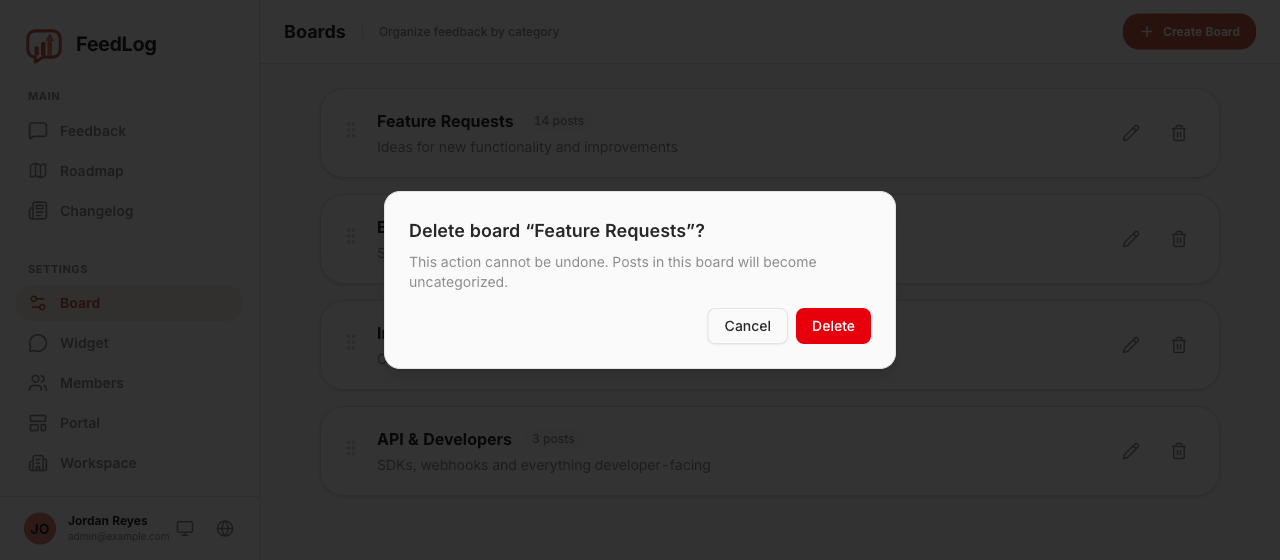
Deleting a board does not delete the feedback in it. The posts retain their
votes, comments, and status but become uncategorized. They no longer appear in
views filtered by board, but remain under All Feedback on the portal and in
the dashboard's feedback list.
If you want to remove the feedback, you must delete the posts themselves.
To categorize a post again, open it and select a board from the post page. There
is no bulk reassignment, so consider renaming a board with many posts instead of
deleting it.
Linking to a single board
Add ?b= to your portal URL to open it with one board already selected:
https://feedback.yourdomain.com/?b=Bug%20ReportsThe value can be the board's name (case-insensitive) or its ID. Names are
readable and suitable for short-lived links, such as a link shared in Slack. IDs
are stable and recommended for long-lived links, such as an entry in your
product's help menu or a bookmark used by your support team.
If the value does not match a board, FeedLog ignores it and shows all feedback
instead of displaying an error. If two boards share a name, a name-based link
selects whichever board appears first. Reordering the boards can therefore
change which board the link selects.
Managing feedback中的更多文章
How feedback worksUnderstand feedback submission, attachments, voting, comments, statuses, and notifications.Finding and merging duplicatesFind similar requests and merge duplicate feedback while keeping discussion and votes together.Roadmap and changelogShare planned work on your roadmap and publish shipped changes in your changelog.