
Roadmap and changelog
Share planned work on your roadmap and publish shipped changes in your changelog.
The roadmap shows which feedback is planned, in progress, or completed. The
changelog records changes that have shipped. Both are public pages in the
portal's top navigation, next to Feedback, so visitors can follow a request
by checking feedback statuses and published changes.
The public roadmap
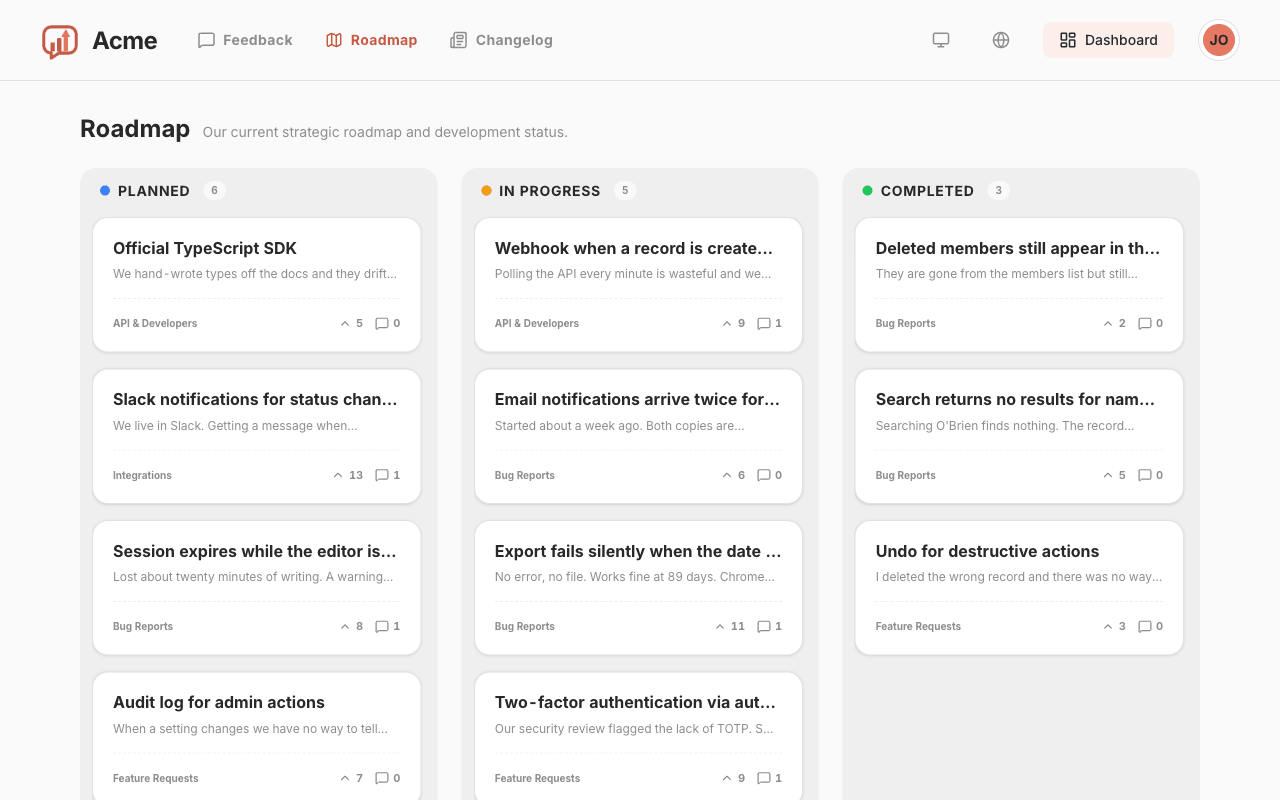
The roadmap at /roadmap displays feedback in three columns: Planned, In
Progress, and Completed. Each card shows the title, a one-line excerpt, the
board the post belongs to, and its vote and comment counts.
Which statuses appear
Feedback has four statuses, but the roadmap shows only Planned, In
Progress, and Completed. New feedback starts as Open and does not appear
on the roadmap.
Changing an Open post to one of the three roadmap statuses adds it to the public
roadmap immediately. Changing it back to Open removes it from the roadmap
without deleting the post.
Merged duplicates are not listed separately; only the post they were merged
into appears. Each column initially loads its ten most recent posts, ordered by
submission date rather than vote count. The header badge shows the column's
total number of posts, and Load more retrieves the next page.
What visitors can do
Each card opens the feedback detail page, including the full description,
comments, and vote button. Anyone can read the page. Whether voting and
commenting require an account depends on the corresponding guest settings.
Voting and commenting remain available in every status, including Completed.
Changing a post's roadmap status does not close either action.
Moving cards
Dashboard → Roadmap adds administrative controls to the same three-column
view: drag and drop between columns, filtering by board, and a + button in
each column header that creates a post in that status.
Moving a card by dragging it does not send email. To notify upvoters about a
status change, open the feedback detail page, change the status there, and use
the notification option. See How feedback works for the
notification rules.
The changelog
The changelog at /changelog lists published entries in reverse chronological
order. The first two entries are expanded and the rest are collapsed. Each
entry also has a page at /changelog/<slug> that you can link to directly.
An entry has a title of up to 70 characters, a Markdown body, up to three
category badges, and an optional cover image (1200 × 480 works best). You create
entries under Dashboard → Changelog.
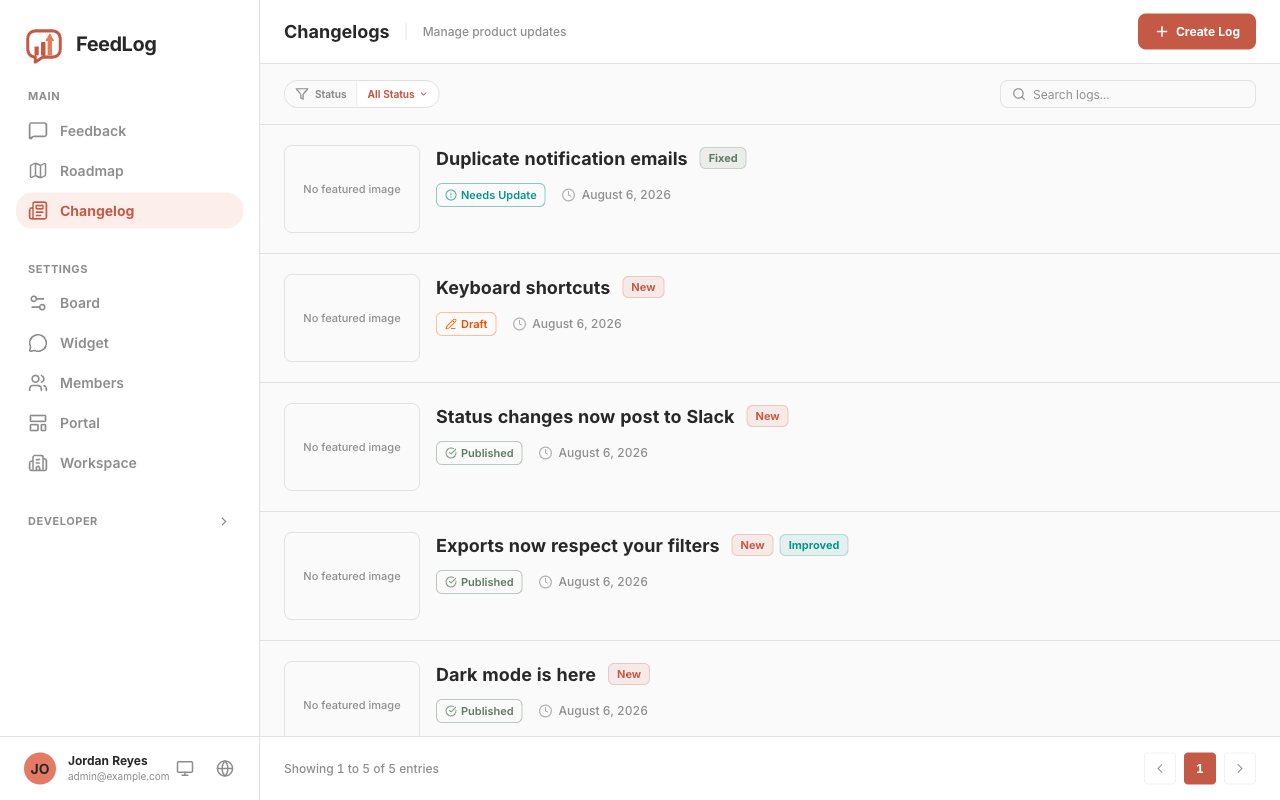
Draft, published, needs update
Each entry has an editable version and a published version. Selecting
Publish copies the editable version to the published version. The status
describes the relationship between these two versions.
Draft — the entry has never been published, so it is not available on the
public changelog and does not have a public page.
Published — the editable and published versions match.
Needs update — changes have been saved after the last publication. Saving
does not update the public page; the previously published version remains live
until you select Publish again. Any saved change, including a title
correction, moves a Published entry to Needs update.
Use the status filter above the changelog list to find all entries whose
published version differs from the editable version.
Republishing moves the entry to today
Every publication sets the entry's publication time to the current time.
Republishing an older entry therefore gives it today's date and moves it to the
top of the timeline. Consider this effect before republishing a minor correction.
The URL is created when the entry is first saved, using the title and a short
random suffix. Renaming the entry later does not change its URL. Deleting an
entry also deletes its reactions.
New, Improved, Fixed
An entry can use any combination of the three categories, which appear as badges
on the timeline:
- Use New for a capability that did not exist before.
- Use Improved for a change to an existing capability.
- Use Fixed for a bug fix.
If an entry covers more than one type of change, apply each relevant category.
Reactions
Readers can react to a published entry with six emoji: 👍 ❤️ 🎉 ✨ 👀 🤔.
One person can add several different reactions to the same entry. Selecting an
existing reaction again removes it. Guests can react when guest voting is enabled;
otherwise signed-out readers are prompted to sign in.
Only reactions with at least one response are displayed, so a new entry shows
the add button instead of six zero counts.
Interpreting reactions
Reaction counts are a general engagement signal. An emoji alone does not explain
why someone selected it, so use comments and feedback when you need more detail.
Drafting with AI
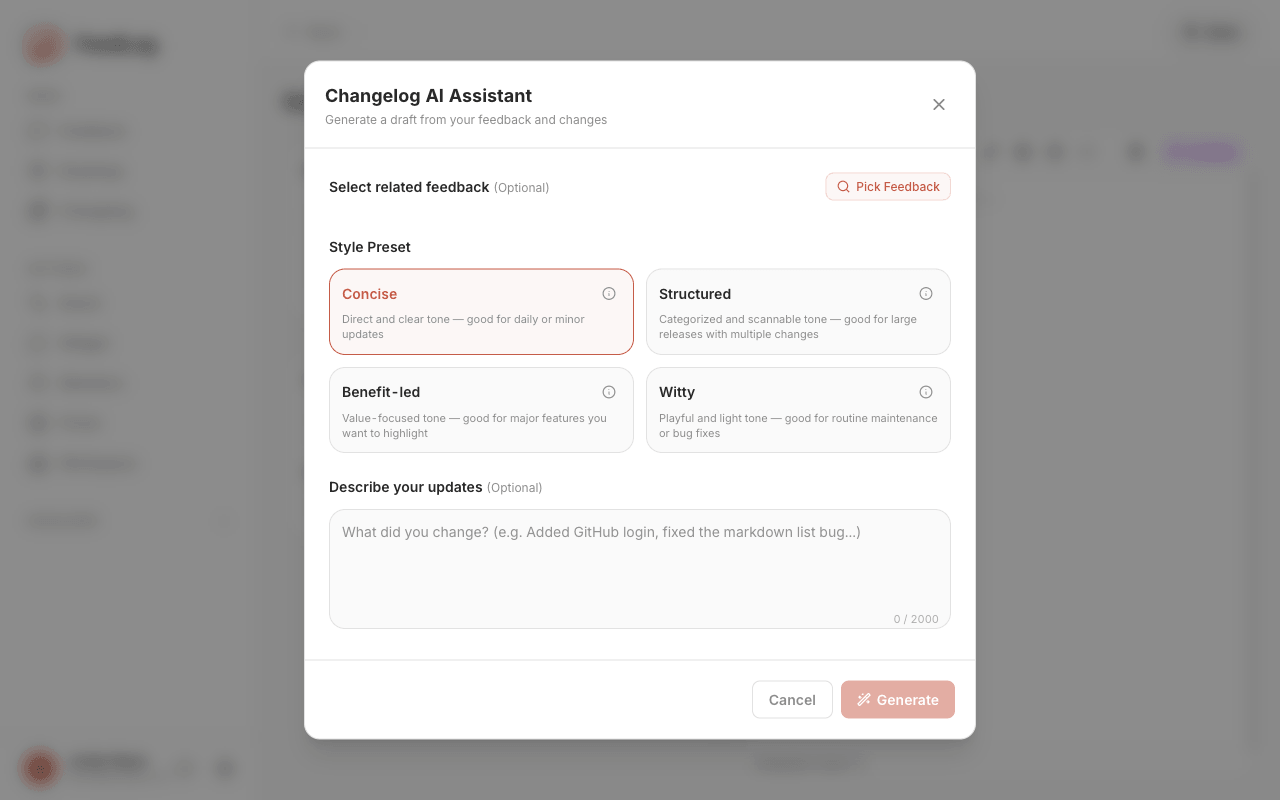
The AI Write button in the editor's toolbar opens a panel with three inputs.
Select related feedback (optional, up to 10 posts). The search uses semantic
matching, as duplicate detection does, so you can search by the meaning of a
request instead of its exact title. Before you enter a search, the picker lists
recent feedback.
Style preset — four of them, described below.
Describe your updates (optional, up to 2,000 characters). Brief notes are
enough, for example: added GitHub login, fixed the Markdown list bug. The
generated draft is always in English, regardless of the input language.
You must provide related feedback, an update description, or both. The update
description is the source of facts. Selected feedback helps confirm the request
and suggest categories, but it is not a source of release facts. The generator
is instructed not to reuse feedback wording or add benefits, reasons, or
implementation details that are absent from the update description.
When a draft needs more detail, the generator may add where readers can find the
change. It preserves explicit numbers from the update description. Verify these
details before publishing, especially menu paths and other interface labels.
The presets differ in length and shape, not only in tone:
| Preset | What comes back | Reach for it when |
|---|---|---|
| Concise | 20–80 words. Two sentences: what readers can now do, followed by where to find it. No headings, bullets, or emoji. | A small update focused on one change. |
| Structured | 40–220 words. A short introduction followed by ✨ New, 💎 Improvements, and 🐞 Fixes sections with one-line bullets. Empty sections are omitted. | A release containing several changes. |
| Benefit-led | 60–170 words. Opens with a directly supported problem, states the outcome, and lists 3–4 available actions. The title contains one emoji. | A larger release whose user-facing outcome needs emphasis. |
| Witty | 30–80 words. One playful paragraph with no headings or bullets. It may omit specific feature names. | A short release where an informal tone fits your audience. |
Because the Witty preset may omit specific feature names, check that the final
entry still communicates the information your readers need.
Generate before you write, not after
Applying a generated draft replaces the title, body, and categories currently in
the editor. The cover image is preserved, but existing title and body text are
not.
Self-hosted instances require OPENAI_API_KEY for AI drafting. Without it, the
button reports that AI generation is not configured; the rest of the editor
continues to work. See Configuring external services.
Review every generated draft before publishing. Check that it includes all
important changes and that names, numbers, categories, and interface paths are
accurate.
Managing feedback中的更多文章
Creating and managing boardsCreate and organize boards, describe their purpose, and control who can submit feedback.How feedback worksUnderstand feedback submission, attachments, voting, comments, statuses, and notifications.Finding and merging duplicatesFind similar requests and merge duplicate feedback while keeping discussion and votes together.