
Introduction to FeedLog Agent
See how FeedLog Agent answers product questions, collects feedback, and helps customers follow updates in the widget.
FeedLog Agent answers product questions and collects feedback inside your product. Customers can start with a natural description, add details in follow-up messages, and check an answer or a saved feedback action without first deciding whether they need instructions or a bug report.
The feedback widget is the entry point to Agent. It lives in your website, your Help Center supplies product knowledge, and your boards receive the resulting feedback. Explore the two flows below, then follow Setting up and launching Agent.
Product questions and articles
A customer might ask:
How do I create my first project in Paceboard?
Agent can find and read articles you have enabled for AI usage, then answer using their steps, permissions, and limits. A follow-up such as “What if I am not an administrator?” retains the context within that conversation.
Agent automatically replies in the customer’s language. Customers can ask questions and add details in the language they normally use.
Public article citations open inside the widget, with a way back to the conversation and an option to read in a new tab. Nonpublic articles can inform answers when AI usage is enabled, but do not appear as public citations.
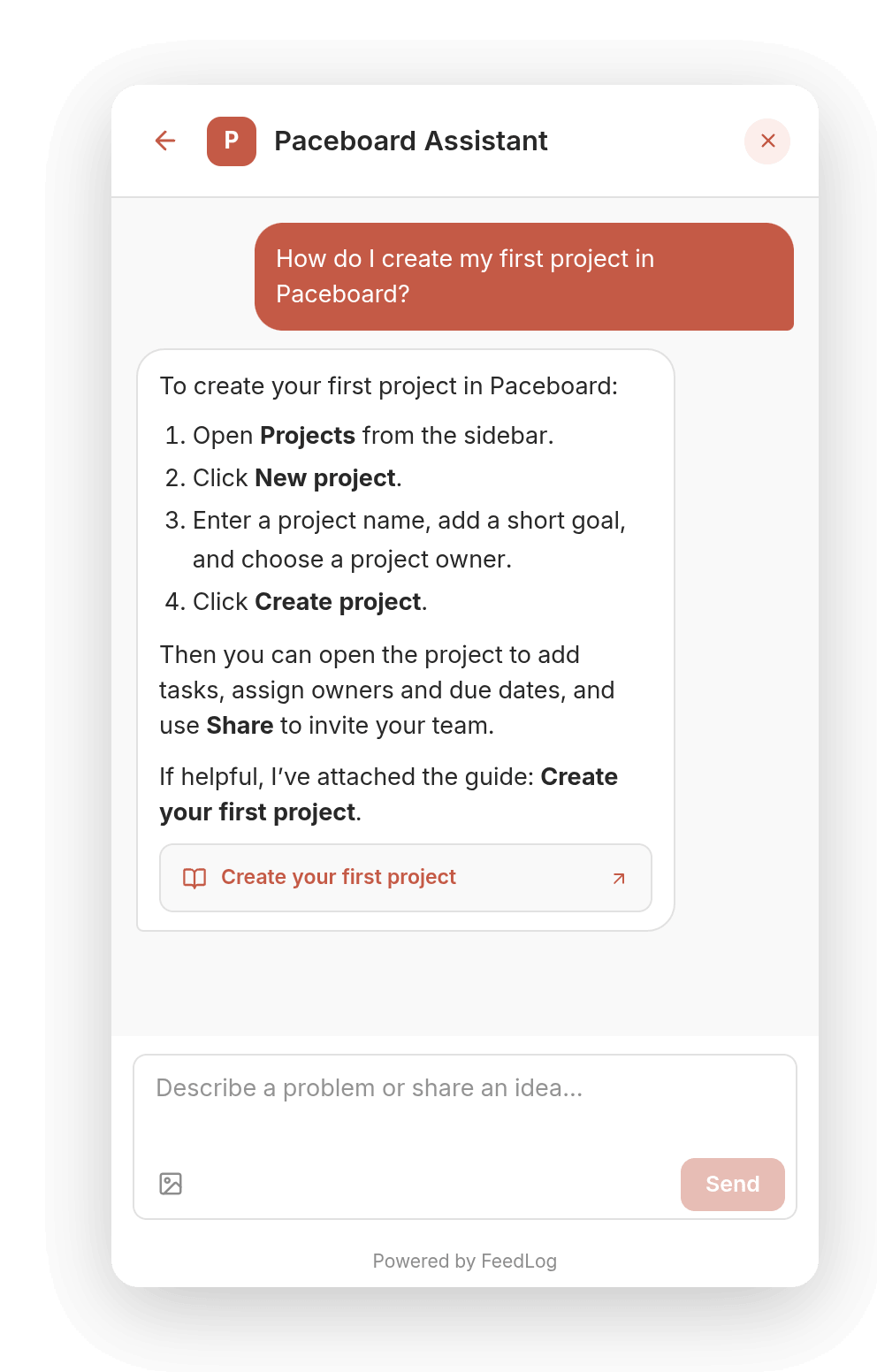
Agent answers a natural-language question using the help article and provides a citation the customer can open.
Accuracy depends on clear, complete, consistent knowledge. Document common tasks, permissions, and recovery steps rather than relying on a short product description. See Choosing articles for Agent.
Feedback actions
The following feature request and export issue illustrate how conversations can become feedback. The messages are examples of customer requests, not a fixed Agent response script.
Describe the issue and find or create feedback
Please add a feature request: let me pin my favorite projects to the sidebar so I can open them quickly.
Agent searches similar public feedback. When an existing post describes the same need, it can vote and subscribe for the customer. Otherwise, it can write a title and description and choose a board for a new post. It may ask for missing reproduction details.
Clear requests can be executed directly; a separate confirmation is not guaranteed. Customers should check the action label and feedback card for the result. Cards show the title, board, status, and vote count, and open the feedback in the portal.
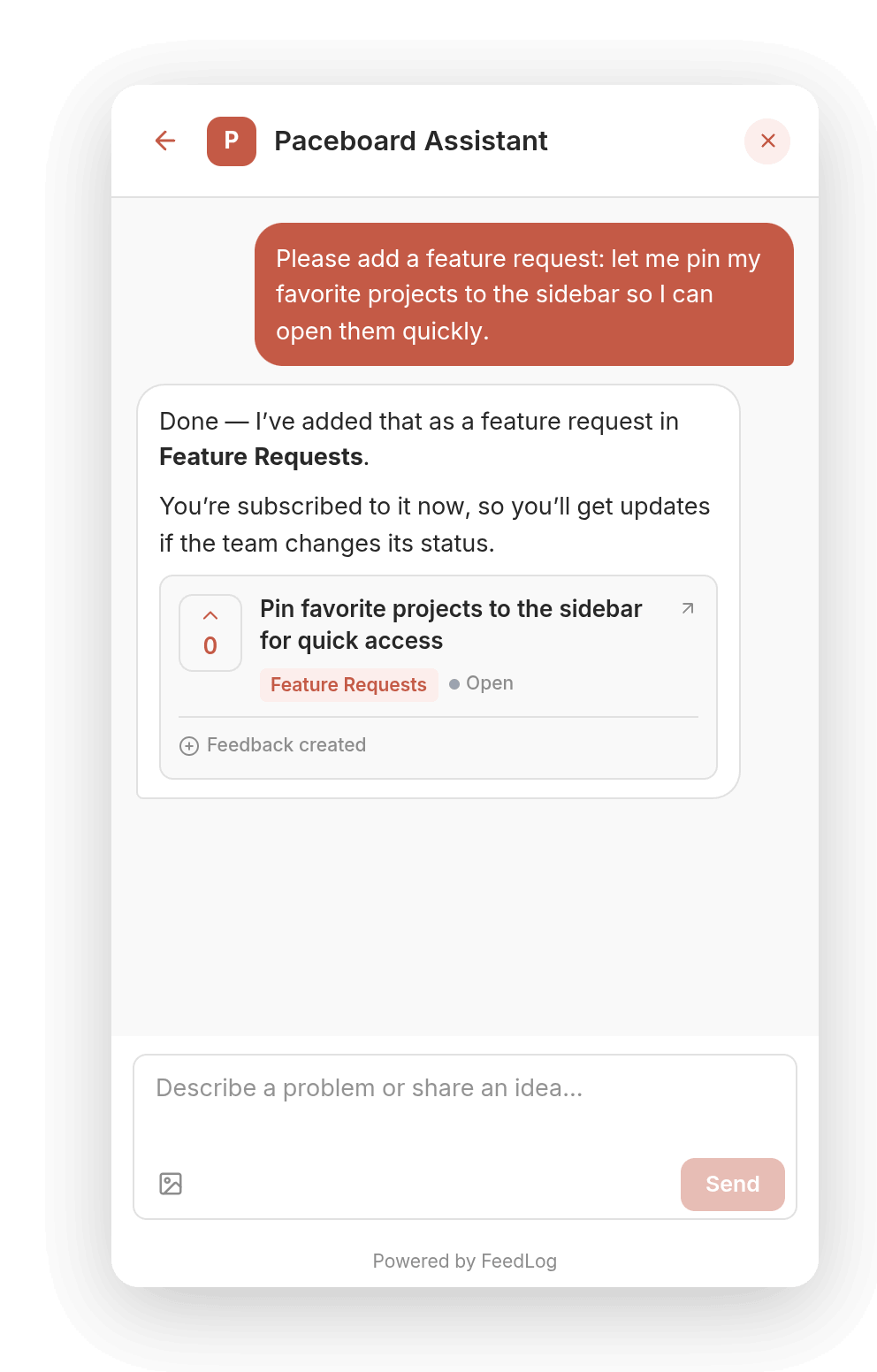
The suggestion becomes a feedback post. Feedback created confirms that the action completed.
For an export issue that has already been reported, a customer can ask to support the existing post:
CSV export keeps spinning in Chrome on macOS when my project contains images. If this is already reported, please upvote it for me.
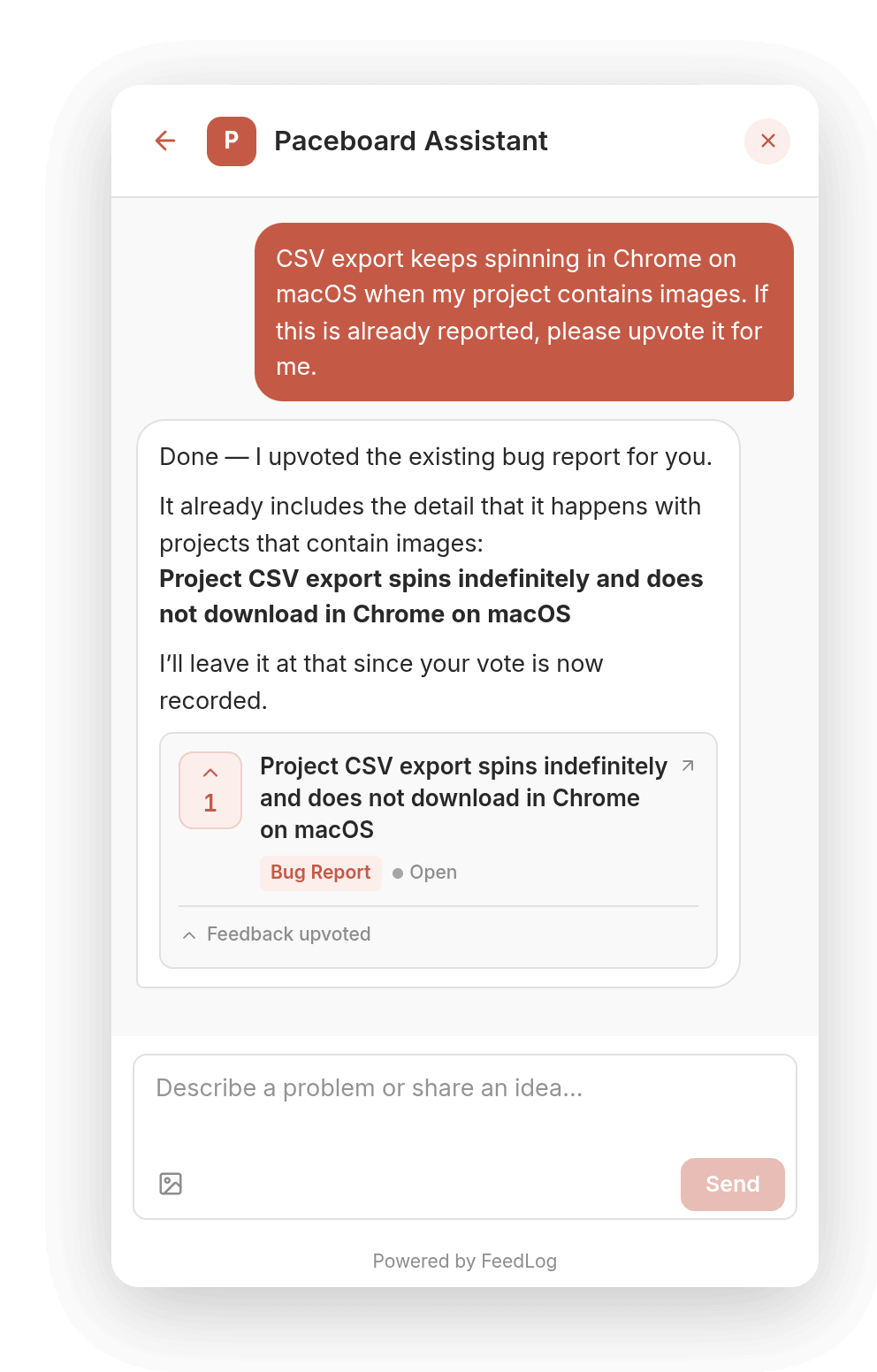
For the same issue, a customer can support the existing report. The card shows Feedback upvoted and the updated vote count.
Correct or add details in the same conversation
I said Chrome, but I meant Safari. Please correct that.
Shortly after creation, customers can ask Agent in the same conversation to correct feedback it submitted for them, provided nobody else has voted or commented. Public feedback is also a shared community discussion. Once others have participated, or a direct edit is no longer appropriate, a comment can explain the correction while preserving the context of the discussion.
One more detail: it only fails for projects containing images.
Customers can add reproduction steps or other information as comments on the relevant feedback. Agent can also correct comments it wrote for them in the same conversation.
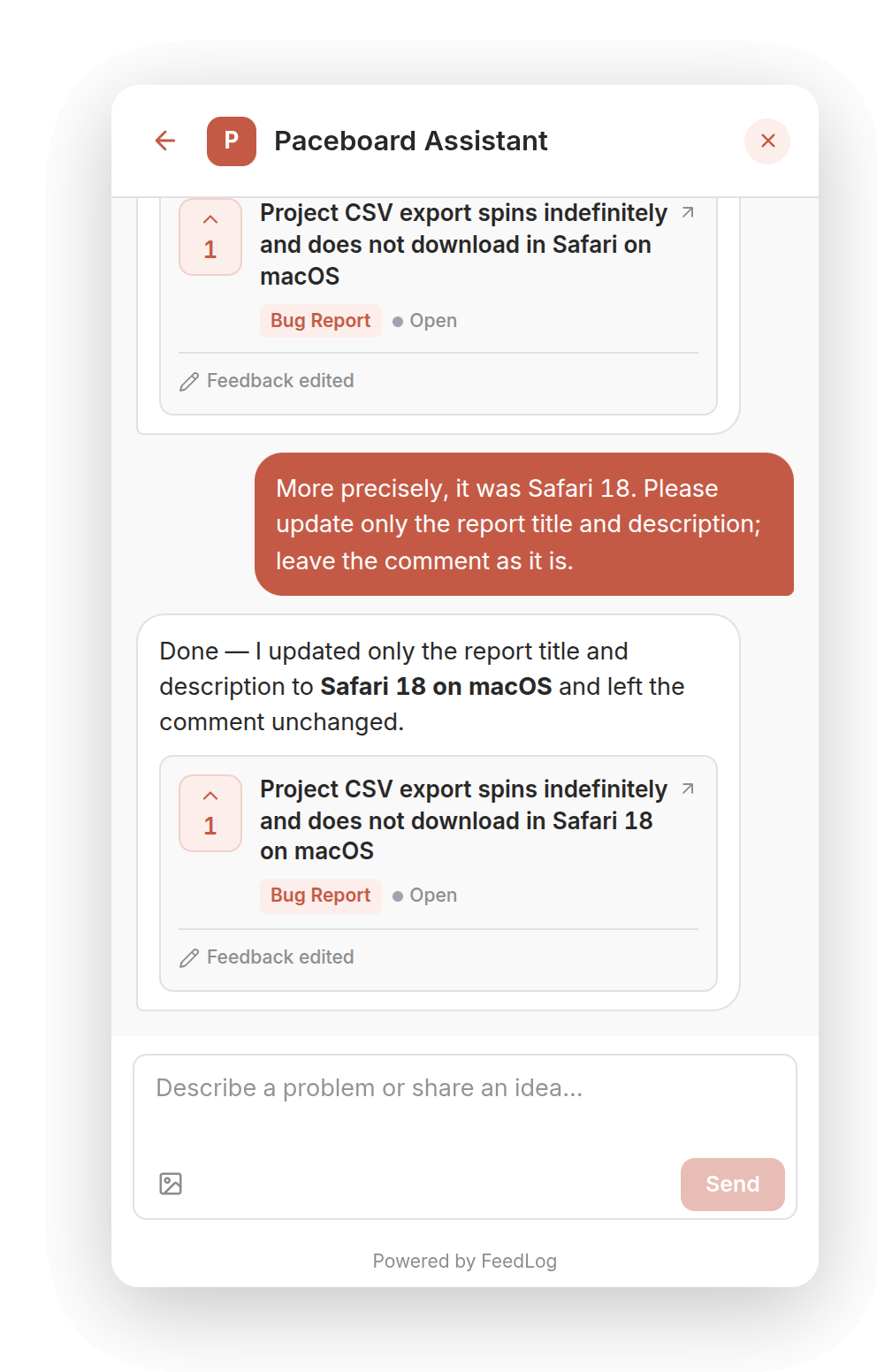
Explain the correction in the original conversation. Agent updates the report when it is eligible for editing.
Track progress in My feedback
After submitting feedback, customers can return to the widget to check progress. From a conversation, use the back button in the upper-left corner, then choose My feedback on the widget home screen.
The list brings together feedback submitted by the current customer, showing each post's title, current status, and vote count. When the team plans a request, for example, its status appears as Planned. Select a post or View on board to open its portal page and read team replies and the discussion.
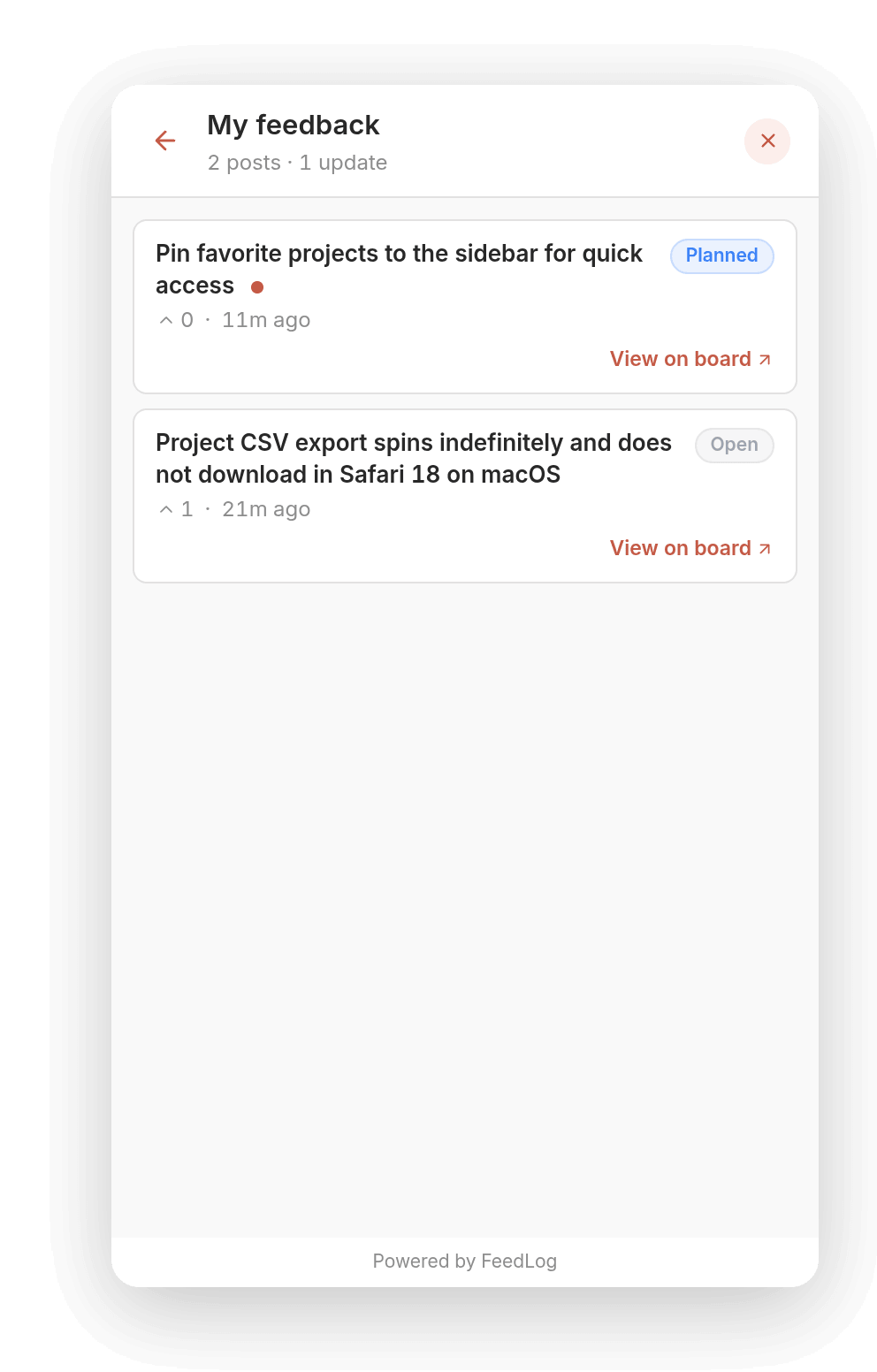
The header shows 1 update, and a dot marks the feedback with an unread update. Open that post to read the team reply.
When the team adds a top-level comment or sends a status-change notification, the author receives an unread indicator. The corresponding post is marked unread in My feedback; opening it clears that indicator. Changing a status updates the list, but does not automatically send a status-change notification.
Email is another way to receive updates. Delivery depends on subscription state, an available email address, and notifications the team sends; see the feedback rules. Customers can also open the widget directly to check current progress.
Conversations
The widget uses workspace branding, with a full-screen layout on small displays. Customers can return to an existing conversation or start a new one.
Messages accept text and pasted or uploaded images. A vision-capable model can interpret images; customers should still describe what they expected and what happened.
Private conversations and public feedback are different records. Other ordinary users do not see the full conversation on the portal. Posts and comments created by Agent can be read by people with access to that feedback. Avoid putting passwords, order details, or private account information into public reproduction steps.
A failed model reply can be retried, but saved posts, votes, or comments are not undone by a reply failure. Check the result before sending the same request again.
Identity and unread updates
Products with accounts can pass the customer's identity to the widget, without requiring a separate FeedLog account. Products without accounts can use guest mode. Posting, voting, and commenting depend on workspace guest permissions.
Where guests are allowed, an identity is created on the first message or upload. Conversations and unread updates belong to that identity; clearing browser data can remove access to a guest's history. Reading the corresponding conversation or feedback clears its unread marker.
Page information
The widget supplies the current page path, title, and description with each message. This helps Agent understand which page a customer means by “this page is broken” and use product knowledge to provide relevant guidance.
See Install the feedback widget for integration instructions.
Workspace settings
Prepare knowledge, organize boards, configure a support email and human-support rules, then integrate the widget. Setting up and launching Agent covers this sequence and the launch checks.
Human-support guidance provides the configured email and instructions. Explicit requests for a person can still receive contact guidance when no custom rules are enabled.
Help Center AI Usage
Allow AI usage is independent of publication. Draft articles and hidden collections can inform answers. Turn AI usage off for unfinished or unsuitable material. See the Help Center AI usage guide.
Troubleshooting
For inaccurate answers, broken citations, unavailable edits, or missing history, see Troubleshooting answers and actions. For a missing launcher or authentication integration errors, see Install the feedback widget.