
How feedback works
Understand feedback submission, attachments, voting, comments, statuses, and notifications.
This page covers the complete feedback workflow: who can submit feedback, the
three submission methods, attachments, voting, comments, statuses, and the
notifications sent by each action.
Who can post
Anyone can read the portal without signing in. A signed-out visitor can see
every board and post, along with comments, vote counts, the roadmap, and the
changelog.
A workspace can separately allow guest posting, voting, and commenting. All
three settings are off by default. Comment likes and changelog reactions use
the guest voting setting. When the corresponding setting is enabled, visitors
can act without registering; otherwise they are prompted to sign in. Available
methods depend on the workspace: email and password, Google, GitHub, or automatic
sign-in from your product through single sign-on.
How feedback arrives
From the portal
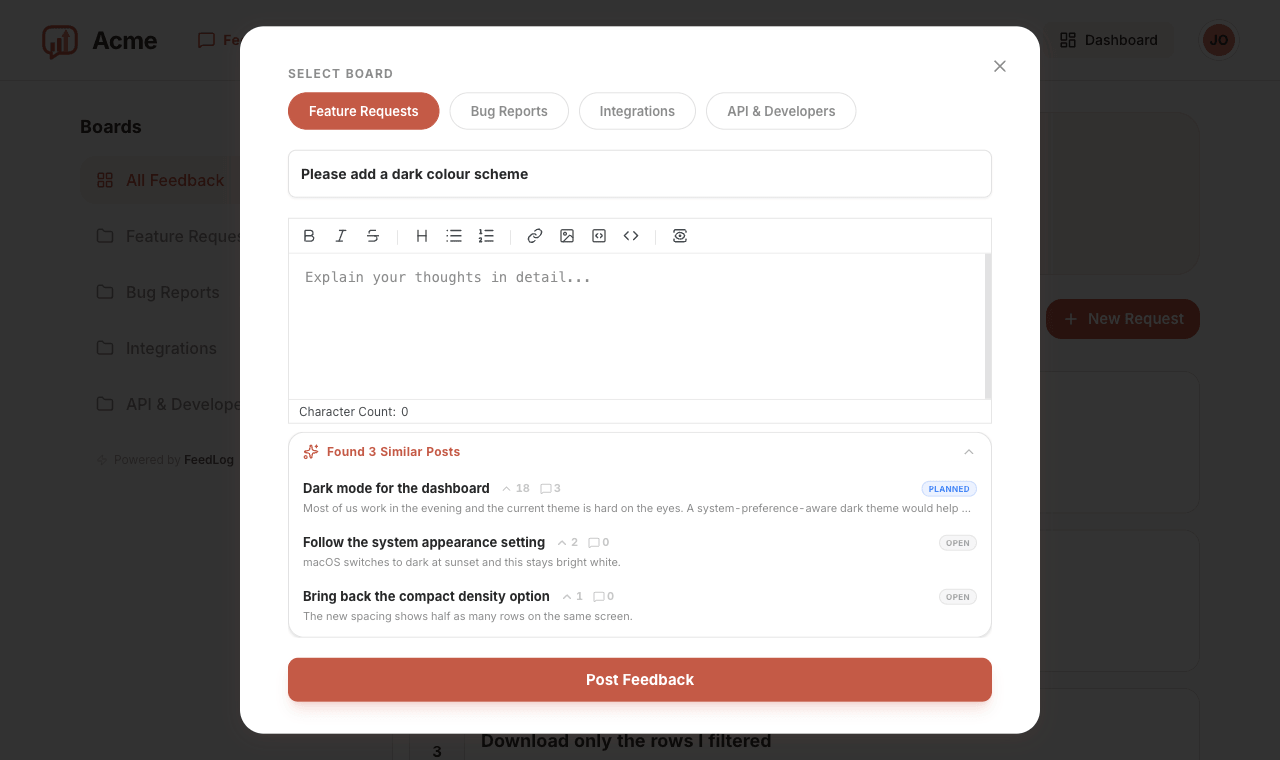
New post opens a form: pick a board, write a title (up to 200 characters)
and a description in Markdown (up to 10,000). The board is required; this form
cannot submit an uncategorized post.
Starting with the third character of the title, FeedLog looks for existing posts
about the same subject and lists them below the editor. This lets the author find
a possible duplicate before submitting a new post. For duplicates that have
already been submitted, see
Finding and merging duplicates.
You can also link straight into a form that is already filled in:
https://feedback.yourdomain.com/?new=1&title=Dark%20mode&body=It%20burnsThis entry point lets signed-out visitors open a draft directly. If guest
posting is disabled, submission prompts them to sign in; after sign-in completes in the same page,
FeedLog continues submitting the draft. When guest
posting is enabled, they can submit as a guest. Values over the limits are truncated rather than
rejected. FeedLog also removes the parameters from the address bar after opening
the form, so refreshing the page does not load the draft again and copying the
current URL does not include its contents.
From the widget
The widget is the in-product entry point to FeedLog Agent. Customers describe an issue, clarify details, and either support matching feedback or create a new post. Agent can also correct or comment within its permissions. The resulting posts follow the portal’s voting, comment, and notification rules. See Introduction to FeedLog Agent and Install the widget.
Filed by an admin
Staff can record feedback received by email, during a call, or in a support
thread. The Feedback and Roadmap pages in the dashboard use the same submission
form, and the staff member's account becomes the post author.
Owners and managers are not subscribed to posts, including posts they create.
Recording feedback with a staff account also does not subscribe the original
customer. To receive later notifications, the customer must submit, upvote, or
subscribe to the post with their own account.
Attachments
Attachments support images only, up to 16 MB each. Other file types, including
log files, PDFs, and videos, are not supported.
You can add an image with the image button in the editor toolbar or paste one
from the clipboard. Dragging a file onto the editor does nothing. Descriptions
and comments both accept images. Uploading requires an existing account or guest
session. Opening a draft alone does not create a guest session, so a first-time
visitor may need to sign in before uploading an image.
Uploads use the workspace's storage prefix and are served through FeedLog rather
than directly from a bucket URL, so the bucket does not need to be public.
Self-hosted instances select a storage backend as described in
Configuring external services. Without one,
Docker uses local disk, while uploads fail on Vercel and Cloudflare Workers.
If an upload fails, no error message appears and the image is not inserted. Try
uploading the image again.
Voting
Each person can cast one vote on a post. Clicking the vote button again removes
the vote. Repeated requests do not create duplicate votes.
The number on a post counts distinct voters. When two posts are merged, FeedLog
does not simply add their totals; a person who voted on both is counted once.
See Finding and merging duplicates for details.
Voting also subscribes you to the post. Removing your vote does not remove
the subscription. To stop receiving notifications for the post, click
Unsubscribe.
Owners and managers are the exception. Their votes count, but voting does not
subscribe them because they do not receive feedback notification emails.
Merged posts no longer accept votes or comments. Both actions remain available
on the post that was retained.
Comments
Comments support Markdown, images, and up to 5,000 characters. Each comment can
receive likes.
Nesting stops at one level. You can reply to a top-level comment. Replying
to a reply does not create a third level; the new comment is attached to the
same top-level comment and includes an @mention of the person you answered. The
server enforces this limit, so it also applies to requests made outside the user
interface.
Only the author can edit a comment. Owners and managers can delete another
person's comment, but they cannot edit it. Edited comments carry an (edited)
marker.
Authors can delete their own comments, while owners and managers can delete any
comment. Deleting a top-level comment also deletes its replies, as stated in the
confirmation dialog.
Editing and deleting posts
Authors can edit their own posts, but cannot delete a published post themselves.
Only owners and managers can delete posts; a merged post must be unmerged first.
Comment deletion follows the separate rules above.
Statuses
FeedLog has four statuses: Open, Planned, In Progress, and
Completed. New feedback starts as Open.
Owners and managers change the status from the sidebar on the portal post page
or in the dashboard's detail view. There is no bulk status change. Statuses can
be applied in any order, including moving a post to an earlier status.
Planned, In Progress, and Completed posts appear on the public roadmap. Open
posts do not. See
Roadmap and changelog for details.
Changing a status does not send an email by itself. After the change, a
prompt appears in the sidebar and asks whether to notify the people following
the post. Dismissing the prompt keeps the status change without sending an
email.
When sending the announcement, you can add a note of up to 2,000 characters to
replace the default wording in the email body. If someone else changes the
status while the prompt is open, FeedLog refuses to send the announcement so it
does not describe an outdated status.
Notification emails
Feedback actions can send two types of notification email:
| Owners and managers | Everyone else | Sent when | |
|---|---|---|---|
| Status changed | Never | People following the post | An admin changes the status and then chooses to announce it |
| Official reply | Never | People following the post | An owner or manager writes a top-level comment |
There is no "new feedback" or general "new comment" email. Submitting a post,
writing a comment as a regular user, or replying to a comment does not send an
email. Only a top-level comment from an owner or manager counts as an official
reply.
FeedLog's other emails, including verification, password reset, and workspace
invitations, belong to accounts rather than feedback. They are listed in
Configuring external services.
Who is following a post
A person follows a post after writing it, upvoting it, or clicking
Subscribe. Users cannot subscribe another person.
Every send excludes owners and managers, as well as the person who caused the
event. Owners and managers do not see the Subscribe button and cannot follow a
post through another action.
Subscriptions are preserved during a merge. If a post you follow is merged
into another one, you continue to receive notifications about the retained
post.
For official replies, the comment box shows admins a Notify upvoters toggle.
Turning it off still emails the post author and anyone who clicked Subscribe,
but excludes people who follow the post only because they voted. Status
announcements do not have this option and are sent to everyone following the
post.
Unsubscribing
The Unsubscribe button appears on the post in the same place as
Subscribe. It applies only to that post.
There is no account-wide setting, and the emails do not include an unsubscribe
link. They only explain why the recipient received the message. To stop all
feedback notifications, unsubscribe from each post separately.
On a self-hosted instance without a configured mail provider, notification
emails are not sent and no error is thrown. Instead, each message is written to
the log with a [DEV EMAIL] prefix. See
Configuring external services for setup
instructions.
More in Managing feedback
Creating and managing boardsCreate and organize boards, describe their purpose, and control who can submit feedback.Finding and merging duplicatesFind similar requests and merge duplicate feedback while keeping discussion and votes together.Roadmap and changelogShare planned work on your roadmap and publish shipped changes in your changelog.